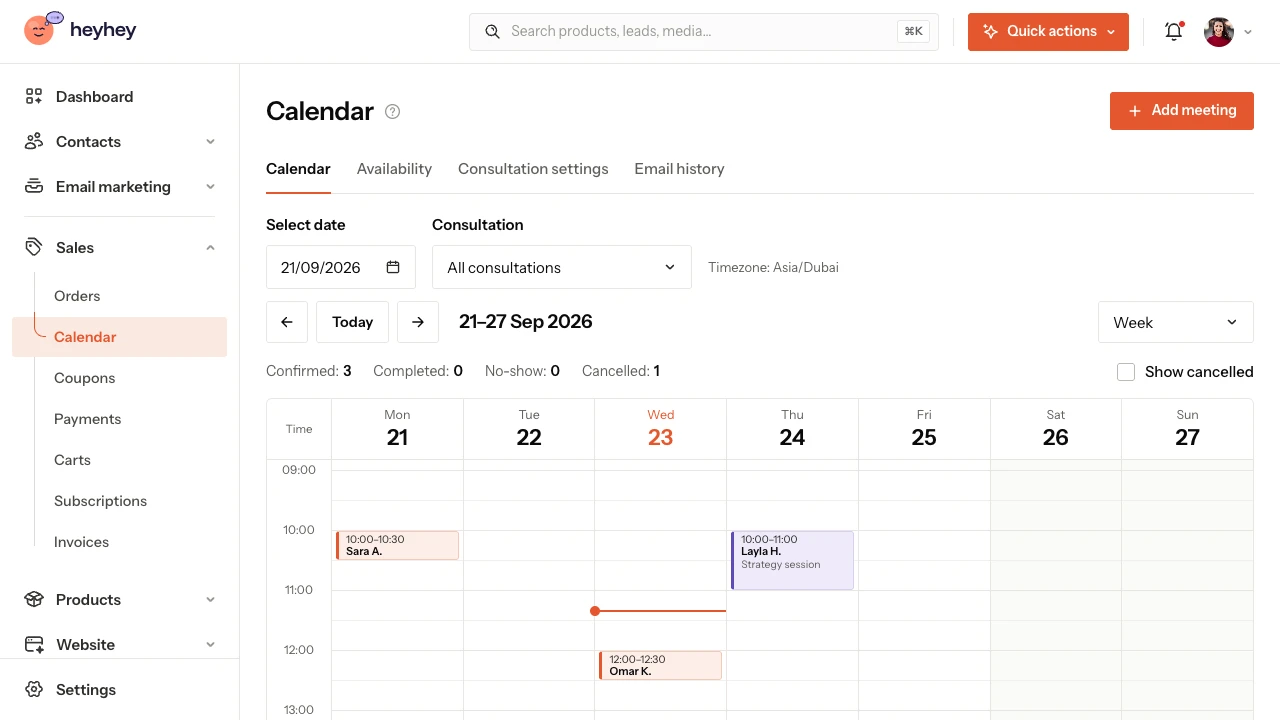
Sample bookings in a demo account.
Consultations now have their own booking calendar. You can offer free calls or sell one-off meetings, and your client picks a time that suits them from your availability.
What’s new?
- All your meetings in one view: see bookings in a calendar or a list, open their details and manage the times.
- Hours under your control: set a weekly schedule, separate hours for a specific consultation, exceptions for specific dates and blocked time.
- Free and paid consultations: choose the model that suits your offer; a paid booking uses a one-off price and your connected payment provider (Stripe or PayPal).
- A form before the call: collect contact details and answers to the questions you need to prepare for the meeting.
- Booking emails: confirmations, updates about changes and email reminders. You’ll find their content in the customer email editor, and the sending status in Email history.
- Several ways to share: a public link, the calendar right on the consultation’s page within your Link in Bio, and buttons on your website and in your emails.
Decide when you see clients
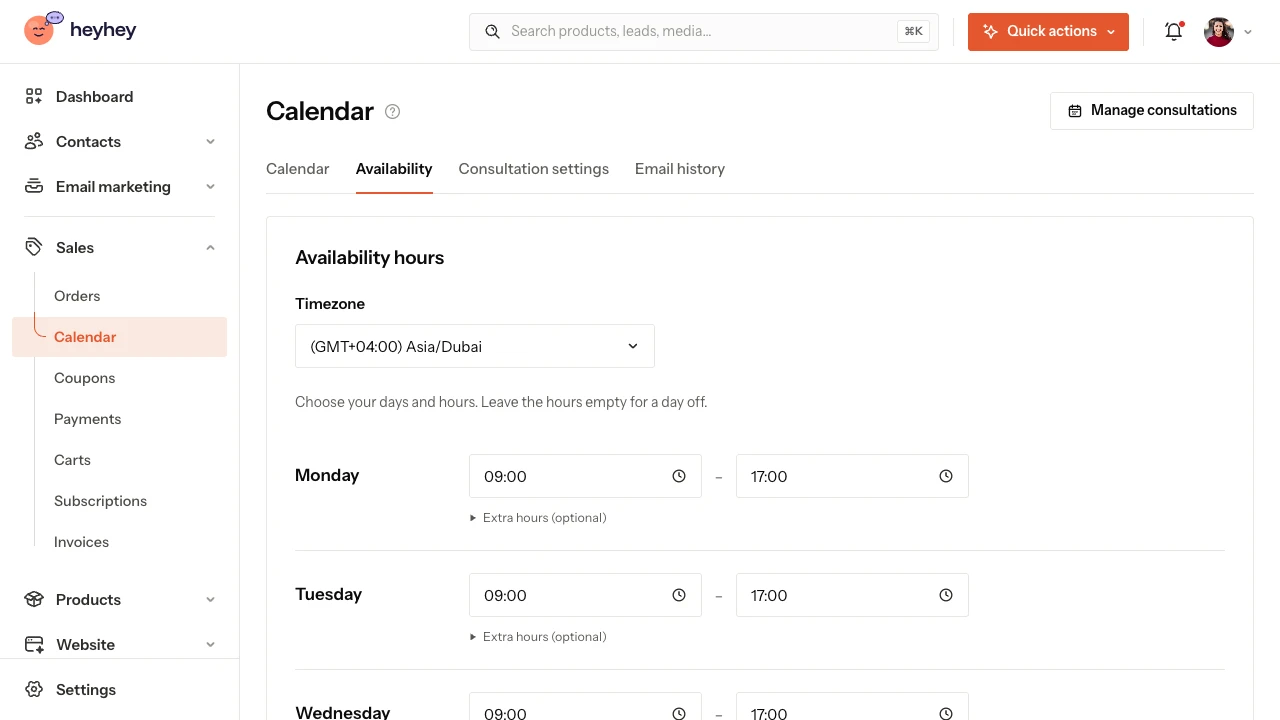
Start with your availability hours. You can repeat them every week or set a separate schedule for a specific consultation. An exception for a chosen date helps when you have a shorter working day, and blocked time helps when you have another commitment.
Set up your consultation before you share the link
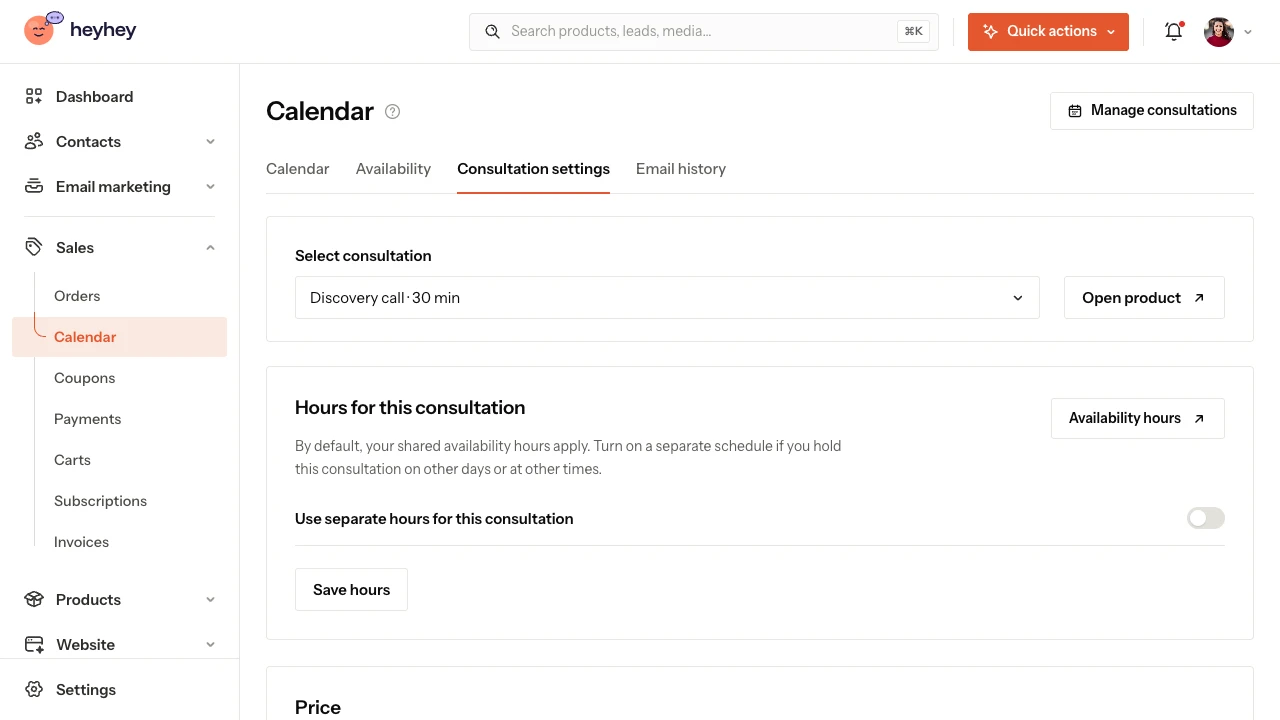
In the settings, you set how long the meeting lasts and where it takes place. For an online call, enter the link your client should use. You can also add questions to the booking form, so you know what your client wants to discuss before the consultation.
See the booking through your client’s eyes
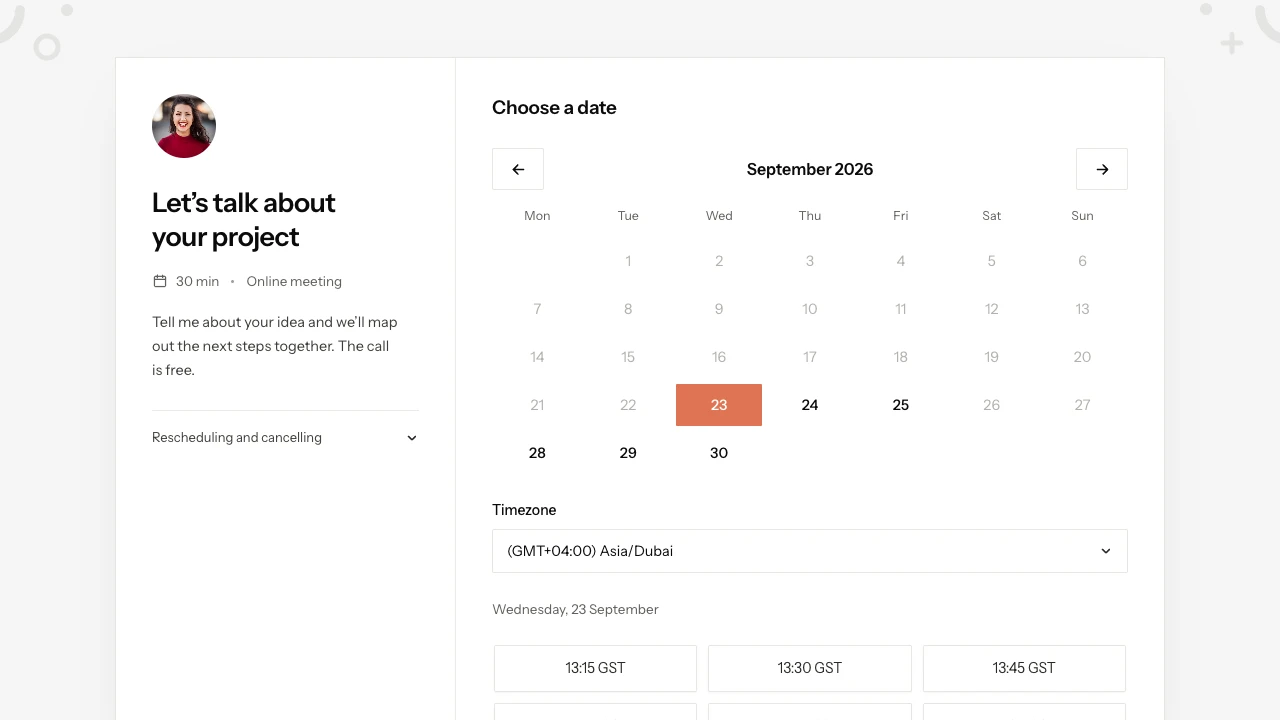
Your client opens your link, picks a free day and time, then fills in the form. For a paid consultation, they also go through payment. On your Link in Bio page, the calendar is available right on the consultation’s page.
What’s in it for you?
You don’t need to agree on every time slot in separate messages. You choose when you see clients and send them the link. You handle bookings, sales and your other products from the same dashboard.
Your client sees the consultation details, the available times and the rules for changes. From their email, they can go straight to managing their booking.
Who is it for, and on which plan?
The calendar is available on every plan, including Starter. A consultation counts towards your product limit, so on Starter it can be your one product. heyhey takes 0% commission on your sales; your payment provider’s fees are charged separately.
Where to start?
In your dashboard, open Sales → Calendar. If you don’t have a consultation yet, create a consultation product, set your availability and the meeting location, then publish your offer.
For an online meeting, you add your own call link. Cancelling a paid booking doesn’t refund the payment automatically; it makes the time slot available to book again. You’ll find the details in the guides.
Explore the calendar · Create your first consultation · All calendar guides