How to set your calendar availability
Your availability decides which times a client can choose. You don’t need to add every free hour one by one: set a weekly schedule, then add exceptions and blocked time.
Shared working hours
- Open Sales → Calendar → Availability.
- Choose your Timezone, for example (GMT+04:00) Asia/Dubai.
- For your working days, for example Monday to Friday, enter the From and To times. Leaving the hours empty means a day off.
- If you need two time ranges in a day, expand Extra hours (optional). For example, 9:00–12:00 and 14:00–17:00 leave you a break in the middle of the day.
- Click Save changes.
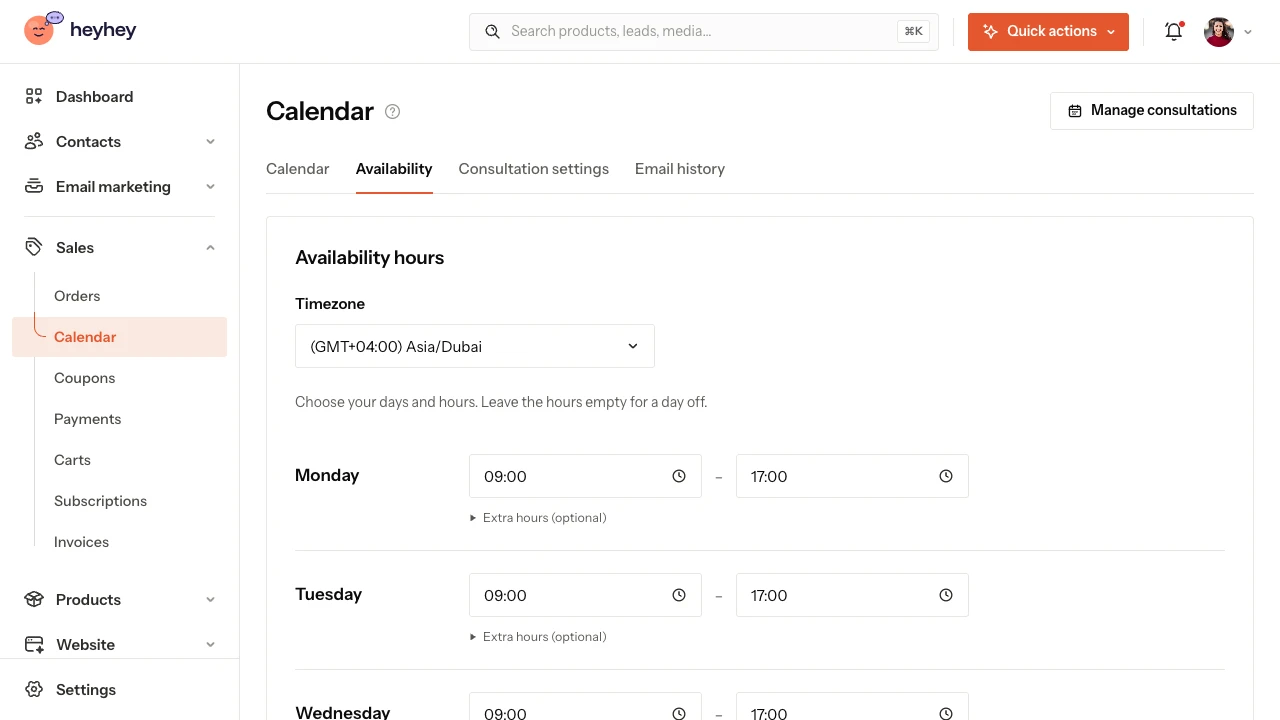
An example schedule on a demo account.
Separate hours for one consultation
In Consultation settings, select the product. In the Hours for this consultation section, turn on Use separate hours for this consultation, enter the time ranges and save the hours.
For example, you run intro calls on Tuesdays and one-hour consultations on Thursdays. Each product can use its own hours, but bookings and blocked time still count when heyhey works out the available times.
Different hours on a specific day
The Change availability on a specific day section is for one-off exceptions. If you usually work Thursdays from 9:00 to 17:00, but this coming Thursday only from 12:00 to 16:00:
- Choose the date of that Thursday.
- Enter 12:00 and 16:00.
- Save your changes.
For a whole day off, tick Day off. An exception applies to all your consultations. It doesn’t move or cancel confirmed meetings: you change an existing booking separately.
Block part of a day
In Block time, enter when your unavailable time starts and ends. The optional Reason for blocking is only for you. The client doesn’t see the note, only that they can’t book at that time.
After saving, check the Blocked times section. You’ll find the block there, and you can remove it if the time should become available again. Don’t remove a client’s booking this way; use the meeting details for that.
Add meetings from other tools as blocked time. Adding an event to an external calendar doesn’t block the time in heyhey.
Why aren’t all hours showing?
The calendar also takes into account the length of the meeting and the rules in Consultation settings:
- Latest booking before the meeting: with a value of 2 hours, a time starting in 30 minutes won’t be available.
- How far ahead people can book: limits the range of dates on offer.
- Breaks before and after the meeting: need extra free time around the meeting.
Set up your basic hours first. Turn to the advanced options when you need a specific break or limit. Troubleshoot missing times.